
First Policy
Learn how to create your first policy in SBOM Observer.
Create your first policy in SBOM Observer to see how rules help you automatically check software components for security issues.
This page gives you a quick, hands-on introduction using the Visual Builder.
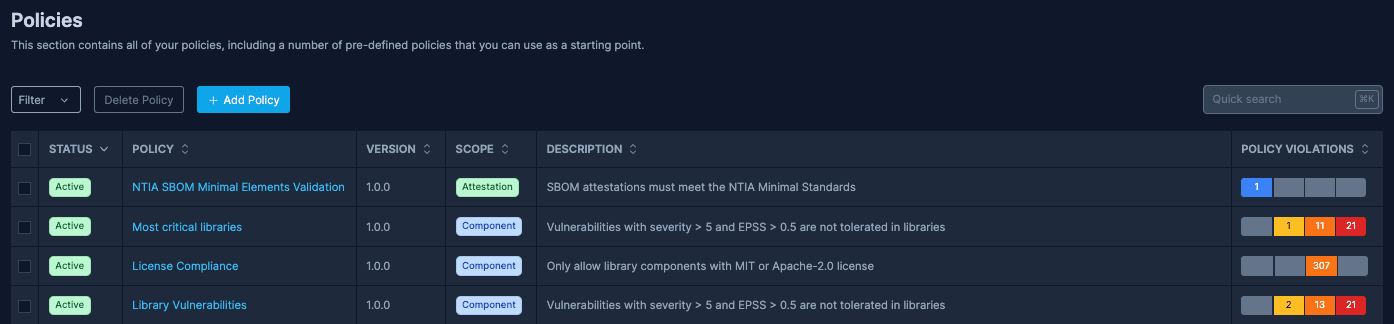
What You'll Build
You'll create a simple policy that finds components with high-severity vulnerabilities (severity > 7) and marks them with clear violation messages.
This example shows how policies help you detect and manage risks directly within your SBOMs.
Create Your First Policy
Open the Policies Section
- Sign in to SBOM Observer
- Select Policies in the main navigation
- Choose Create Policy
Set Basic Details
In the policy setup panel, fill in a few details:
- Policy Name: “High-Severity Vulnerabilities”
- Enabled: Toggle to On
- Scope: Choose Components
- Description: “Flags components with unresolved high-severity vulnerabilities”
Define the Rule
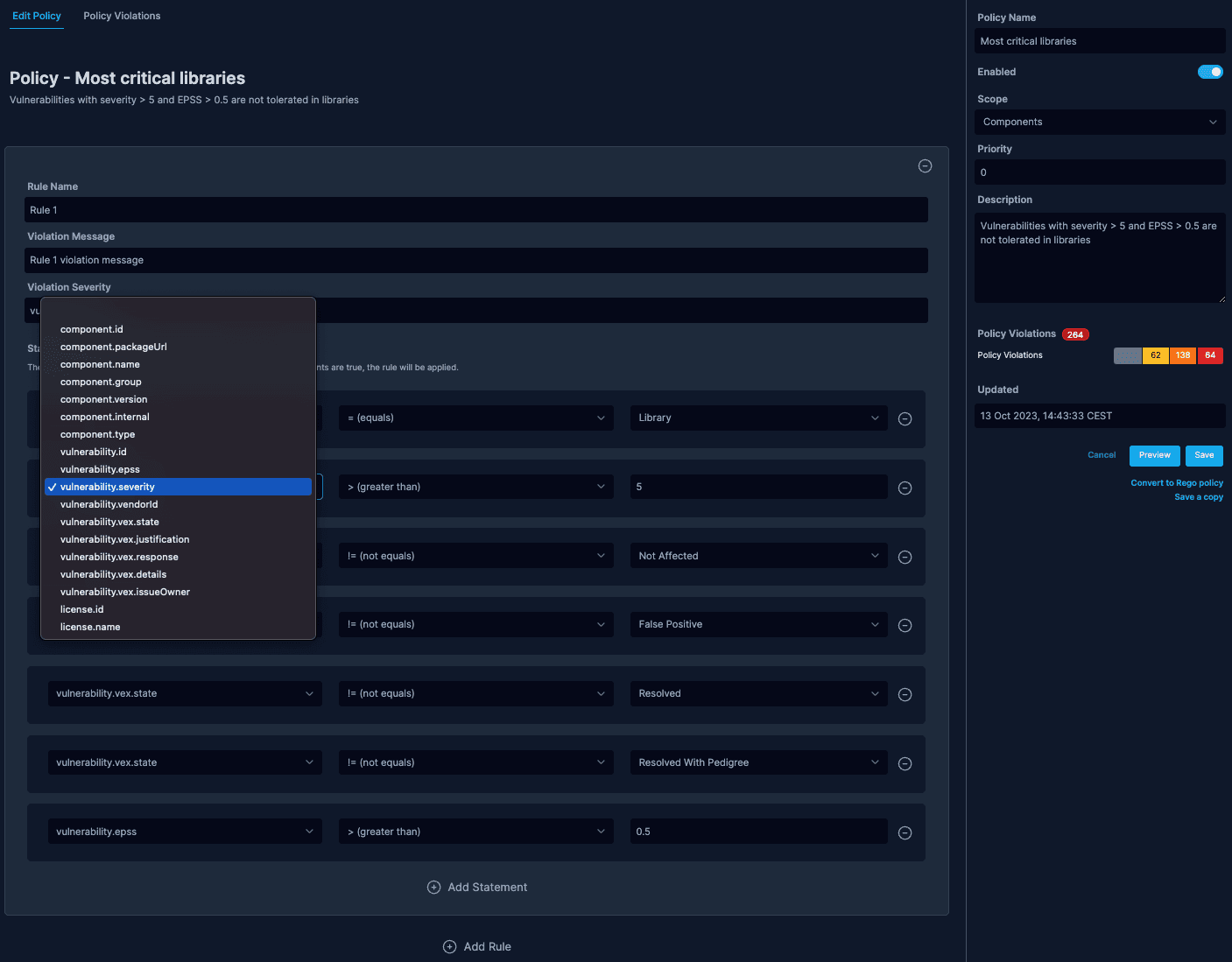
In the Rule Builder:
- Rule Name: “Critical vulnerability check”
- Violation Message: “Component has unresolved high-severity vulnerability”
- Violation Severity: Select 8 (This is the policy violation severity level, any value 0.0 to 10.0)
Then add a condition:
- Property:
vulnerability.severity - Operator:
> (greater than) - Value:
7
Preview and Save
- Click Preview to see which components would be flagged
- Review the results and adjust if needed
- Select Save to activate the policy
How Policy Enforcement Works
Once active, your policy automatically checks:
- New SBOM uploads in the namespace
- Existing SBOMs when vulnerability data changes
- All components whenever the policy is updated
SBOM Observer runs these evaluations continuously, so every change is verified against your rules.
View Policy Results
After saving, the policy evaluates all components right away. Select Policy Violations in the main navigation to see if there are any policy violations.
Next Steps
- Write advanced policies using Rego or JavaScript
- Dive deeper into policy concepts to understand evaluations and scopes
- Set up policy enforcement in CI/CD to block non-compliant builds